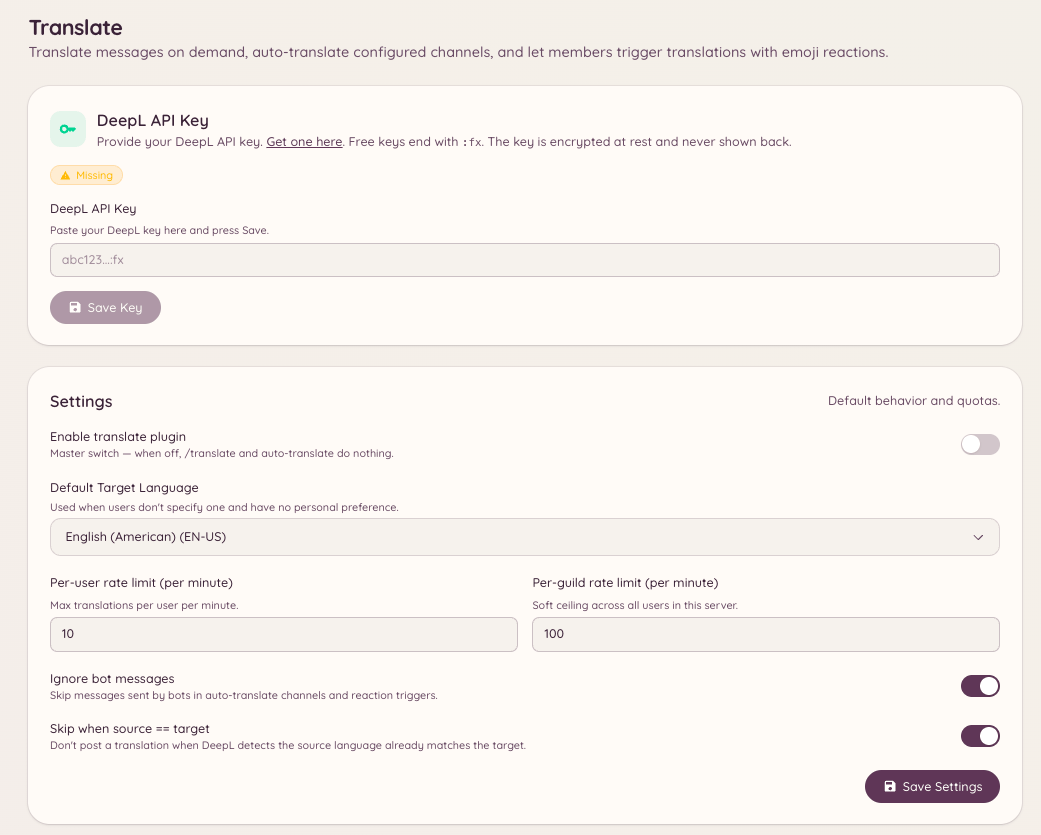
The translation plugin uses DeepL to translate messages. Members can translate any message on demand, and administrators can configure channels where every message is automatically translated into a target language.
Translate

Translating a message

Translates a specific message into the target language. The bot replies with the translated text. The original message is not modified. You can also translate using the Discord Apps context menu: right-click any message, select Apps, then Translate.

Checking a language

Looks up a language by name or code to confirm how DeepL identifies it and what other languages it can be translated from and into.

Auto-translate channels

Channels can be configured to automatically translate all messages into a designated target language. This is useful for multilingual communities where you want a single channel accessible to speakers of different languages. Navigate to in the dashboard to add channels to the auto-translate list. For each channel, configure: When auto-translate is active, the bot posts a translation as a reply to each message. Messages already in the target language are skipped.

Language emoji mapping

Navigate to in the dashboard to configure which flag or custom emoji represents each language. These emoji are used in translated message headers to indicate the source and target language visually.

Testing translation

Navigate to in the dashboard to send a test string through the translation engine and verify the output before applying it to live channels.

Required permissions