Logging in
Navigate to bot.bifrost.gg and click Sign in with Discord. Discord will ask you to authorise the dashboard application, which reads your username, avatar, and the list of servers you manage. No message or content access is requested. Once signed in, you will land on the guild selector.Guild selector
The guild selector lists every Discord server where you have the Manage Server permission and Heimdall is present. Click a server’s card to open its dashboard. If you manage a server but Heimdall has not been added to it, the card will show “Invite”. Simply click on it to invite Heimdall into your server.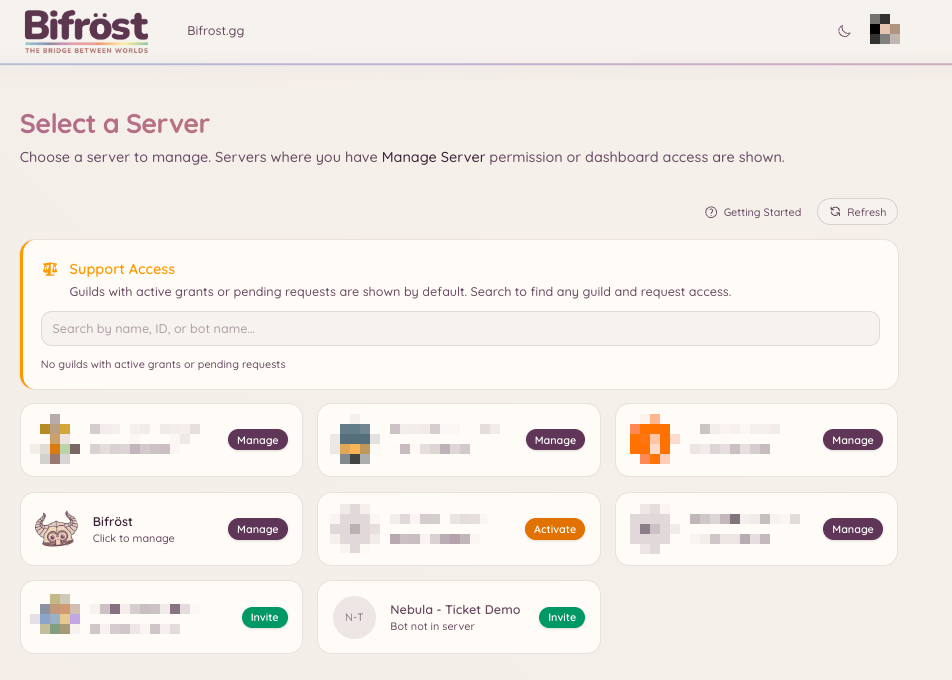
Overview page
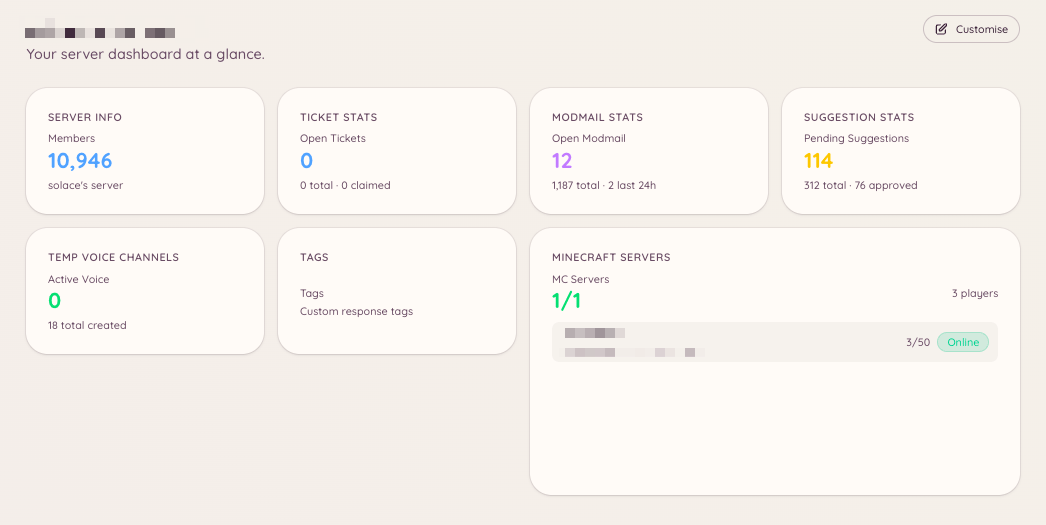
The page is the first thing you see after selecting a server. Rather than a fixed layout, it is a fully customisable widget dashboard. Heimdall provides a library of information widgets - from server member counts and ticket queues to Minecraft server status and modmail volume - and you arrange them to suit how you work. To customise the layout, click Edit layout in the top-right corner of the page. In edit mode you can:- Add widgets - click the + button to open the widget picker and place widgets from the library
- Move widgets - drag any card to a new position on the grid
- Resize widgets - drag the resize handle to change a card’s dimensions
- Remove widgets - hover a card and click the remove button to take it off the grid
Navigation
The left sidebar lists every available plugin. Each entry links to that plugin’s configuration and management section. Sections with sub-pages expand when clicked to reveal tabs such as Configuration, Analytics, Categories, and so on. The sidebar is split into groups matching the sections in this documentation: Moderation, Support, Community, Voice, Games, Integrations, AI, and Utilities.Panels posted in more than one channel
A panel is a message with buttons that members press, such as a ticket opener, a role button panel or the Minecraft account linking panel. You can post the same panel in as many channels as you like. Posting it in a new channel adds a copy there. It never moves or deletes the copies you already have. When you post a panel, the post dialog shows a Posted in list with every copy Heimdall knows about. Each row shows the channel, when the copy was posted, who posted it when Heimdall knows, and its state:
Changing a panel’s wording, or a setting that changes what it says, updates every copy that is still there. A copy someone deleted is taken off the list rather than posted again.
Heimdall only deletes messages it sent. If a listed copy turns out to be someone else’s message, Delete leaves it in the channel and only takes it off the list.
Deleting a suggestions or games opener also deletes the listed copies Heimdall can reach. A copy it cannot reach, or one that was never listed, stays in Discord with buttons that no longer work, so delete it there.
For most panels, Heimdall used to remember only the most recent copy, so that is the only older copy listed at first. An older copy elsewhere is added the first time a member presses one of its buttons, as long as Heimdall can tell which panel it belongs to. For openers (tickets, modmail, suggestions and games) Heimdall cannot always tell which opener an old copy belongs to, so an old opener copy may never be added this way. Until a copy is listed, Refresh and Delete cannot reach it, and you can delete it in Discord as usual.
Permissions in the dashboard
Your access to dashboard sections depends on what permissions your Discord roles have been granted. If you cannot see a section, you either do not have the relevant permission or the plugin has not been enabled. Administrators with the Discord Administrator permission always have full access. See Permissions for a full explanation of how the permission system works.Making changes
Changes made in the dashboard take effect immediately. There is no publish or save-all step - each section has its own Save button that applies changes to that section only.The bot does not need to be restarted when you change configuration. Changes are picked up automatically.