
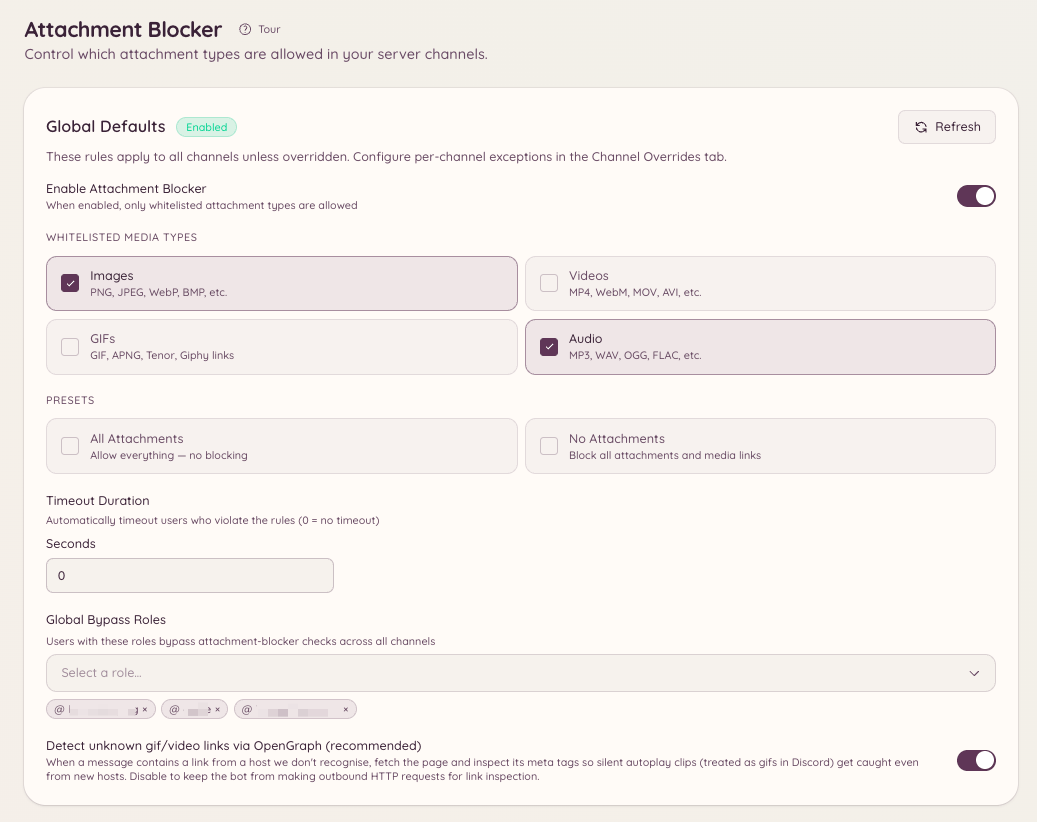
How it works
Every message in a covered channel is checked against the rule that applies there. The check looks at:- Files uploaded as attachments.
- Media carried by a forwarded message.
- Embeds Discord resolves for a link, which is how a Tenor GIF or an embedded video is caught.
- Media links in the message text: Tenor, Giphy, Imgur and direct file links.
- Unknown links, which are probed for OpenGraph media when OG fallback is on. A link that turns out to point at an image or a video is treated as that media type.
.exe or .zip to fill in, and no MIME strings to type. You choose media types, and the mode you pick decides what happens to everything else.
Choosing a mode
Each level of configuration uses one of two modes.
The non-media row is the one that catches people out. A whitelist is a statement about everything, so a channel whitelisted to Images also removes PDFs, text files and archives. A blacklist is a statement about the types it names, so a blacklist of Videos removes videos and leaves a PDF alone.
An empty blacklist blocks nothing, deliberately. That is the honest state for “I have chosen the mode, I have not chosen the types yet”.
Configurations made before blacklist mode existed are whitelists, so nothing changed for a server that was already set up.
Server defaults
The server default applies everywhere that has no override. Set it from in the dashboard, or in Discord:mode off and the server keeps the mode it already uses. All and None are whitelist ideas and are refused in blacklist mode, because a blacklist of everything is a whitelist of nothing and one spelling per outcome is enough.
/attachment-blocker view prints the rule currently in force, and /attachment-blocker disable turns the feature off server-wide.
Channel overrides
A channel override replaces the server default in that channel, mode and all. Add one from , or:- Threads follow their parent. A thread with no override of its own uses the override on the channel or forum it lives in.
- An override that lists no types inherits everything. It takes both the mode and the list from the server default, so a half-filled override never quietly becomes a rule of its own.
Temporary voice channels
Temporary voice channels are created on demand, so they cannot be given an override by hand. Instead you set the rule on the opener that spawns them, from . Every temporary channel that opener creates gets that rule.Bypass roles
A bypass role skips the mode check, so holders can post whatever they like. You can grant a bypass server-wide, or only in one channel:/attachment-blocker bypass list and /attachment-blocker bypass channel-list show who currently bypasses, and /attachment-blocker bypass remove and /attachment-blocker bypass channel-remove take the role back off.
A bypass role does not protect a member from a restriction aimed at them personally. That is the point of restrictions.
Restricting a member
When one member is the problem, restrict that member instead of tightening the channel for everybody. Open the restriction panel with either of these:- Overrides bypass roles. A restricted member stays restricted even while holding one.
- Overrides the channel rule. It applies whatever that channel allows.
- Tells the member when it ends. They are DMed when it is lifted and when it expires.
/attachment-blocker user list shows the active restrictions, /attachment-blocker user unrestrict and /attachmentunban lift one, and in the dashboard does all of it from the web.
Timeouts and DMs
When a message breaks the rule:- The message is deleted.
- The member is DMed an explanation of what was removed and why. That message is a template, so you can rewrite it under Message Templates.
- If the level that caught the message sets a timeout, the member is timed out for that many seconds.
0 to delete without timing anybody out. Each level carries its own timeout, so a channel override can time out for longer than the server default, or not at all.
Commands
Required permissions
Manage Own Restrictions only lifts the guard that stops you targeting yourself on the restriction panel. It does nothing on its own, so grant it alongside Manage User Restrictions.