How tickets work for members
A member runs/ticket open or clicks an opener button you have placed in a channel. They select a category, optionally fill in an opening form, and a private thread is created. The thread is visible only to the member and staff roles configured for that category. The member and staff exchange messages inside the thread as a normal conversation.
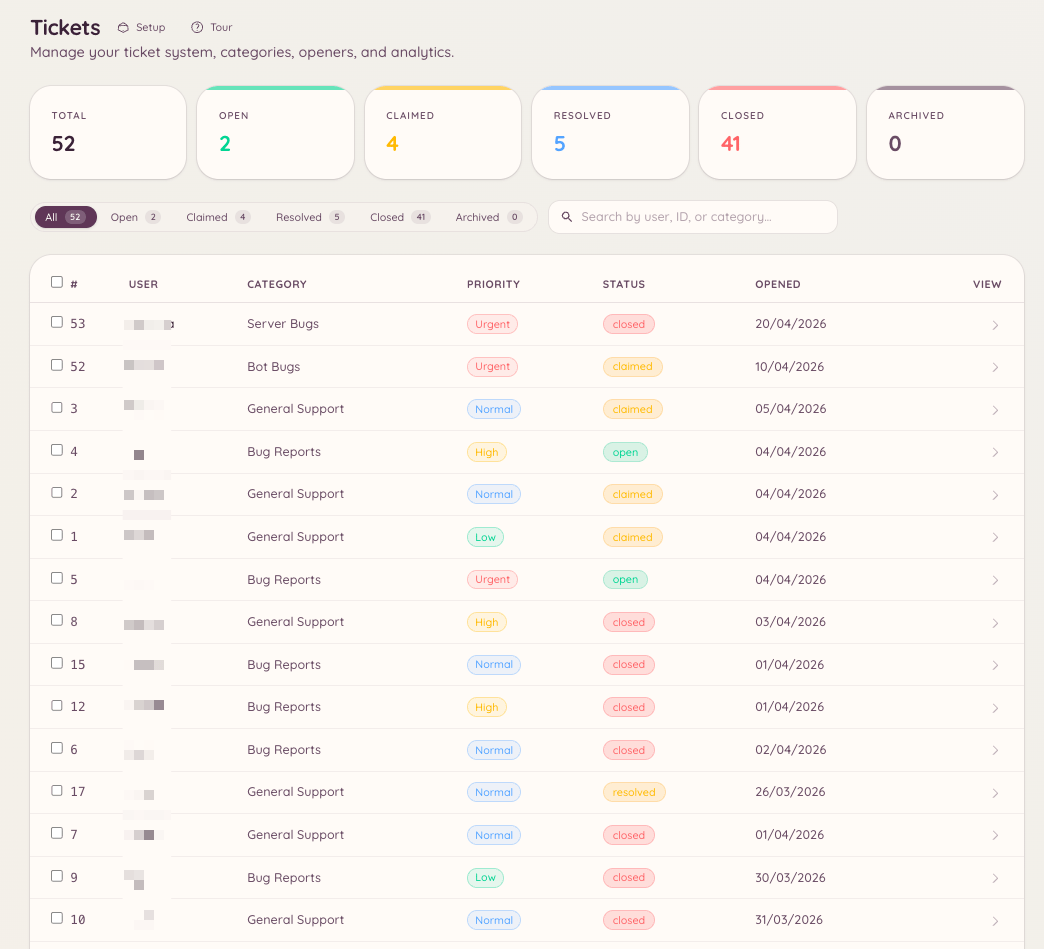
When the issue is resolved, either the member or a staff member closes the ticket. Closed tickets can be reviewed in the dashboard under .
Setting up
Creating categories
Navigate to in the dashboard and click New Category. Each category defines:Inactivity reminders
Each category can warn about, and then close, tickets that go quiet. Under Inactivity Reminder in the category editor you set how long a ticket can sit before the warning is posted, how long after the warning it closes, and who the warning pings:
With Smart, choose whether a ticket waiting on staff pings the category’s staff roles or only the staff member who claimed it. An unclaimed ticket always pings the staff roles.
Asking the opener when they look done
A support conversation often ends with staff answering and the member replying “thanks”. Smart would then treat the ticket as waiting on staff. To avoid pinging staff about a solved ticket, Smart can recognise a sign-off and ask the member instead: the warning becomes “Is your issue sorted?” with Yes, close it and I still need help buttons. “I still need help” pings staff straight away. If nobody answers, the ticket closes on the normal schedule. Two settings decide when a reply counts as a sign-off:
The question’s wording can be changed under as the Resolution Check message.
Configuring openers
Openers are the buttons or select menus members use to create tickets. Navigate to and click New Opener. After configuring the opener, click Post to have the bot send the opener panel to a channel of your choice. You can post the same opener in several channels, and refresh or delete each copy from the Posted in list in the post dialog. See Panels posted in more than one channel. An opener can present a single “Open Ticket” button or a select menu listing multiple categories, depending on how you configure it.Slash commands
The/ticket command provides the following subcommands:
The
/ticket-admin command provides category management directly from Discord, covering the same operations as .
AI-assisted responses
If the AI plugin is enabled and connected to your ticket categories, Heimdall can suggest draft responses based on your knowledgebase and past resolutions. See Odin AI for setup.Reviews
Members can optionally be prompted to leave a satisfaction review when a ticket is closed. The review prompt asks the member to rate their experience and optionally leave a comment. Scores and comments are aggregated in the analytics dashboard under and can be filtered by category and date range. Enable reviews in . Whether closing a ticket sends the review prompt is set per category, with Send Review Prompt on Close in .Auto-Responses
Ticket auto-responses are pre-written replies that fire automatically when a ticket is opened if the opening message matches a trigger. Navigate to to configure them. Each auto-response has:
Auto-responses post as the bot inside the thread. They do not close the ticket - staff still handle the conversation.
Quotas
Quotas limit how many open tickets an individual staff member can be assigned to at once. Navigate to to configure per-role or per-user limits. When a staff member reaches their quota:- Auto-assignment skips them when distributing new tickets
- Manual assignment is still possible if a manager overrides the quota