How permissions work
Every feature in Heimdall exposes one or more named permission keys. For example, the moderation plugin exposes keys such asmoderation.enforcement.ban and moderation.enforcement.warn. The ticket plugin exposes tickets.operations.manage_tickets and tickets.operations.claim_tickets.
You assign these keys to Discord roles through the dashboard. When a member runs a command or accesses a dashboard section, Heimdall checks whether any of their current roles have been granted the matching key. If they have, the action proceeds. If not, the bot responds with a permission denied message.
Default access
Some features are available to all members by default. These are typically member-facing features - for example, creating a suggestion, opening a ticket, using the games commands, or requesting a translation. These features have default allow enabled and do not require any explicit permission grant. Staff-facing and administrative features default to restricted. No member can run aban command, manage automod rules, or access the dashboard’s section unless their role has been granted the appropriate permission key.
Members with the Discord Administrator permission bypass all Heimdall permission checks and always have full access.
Configuring permissions
1
Open Settings
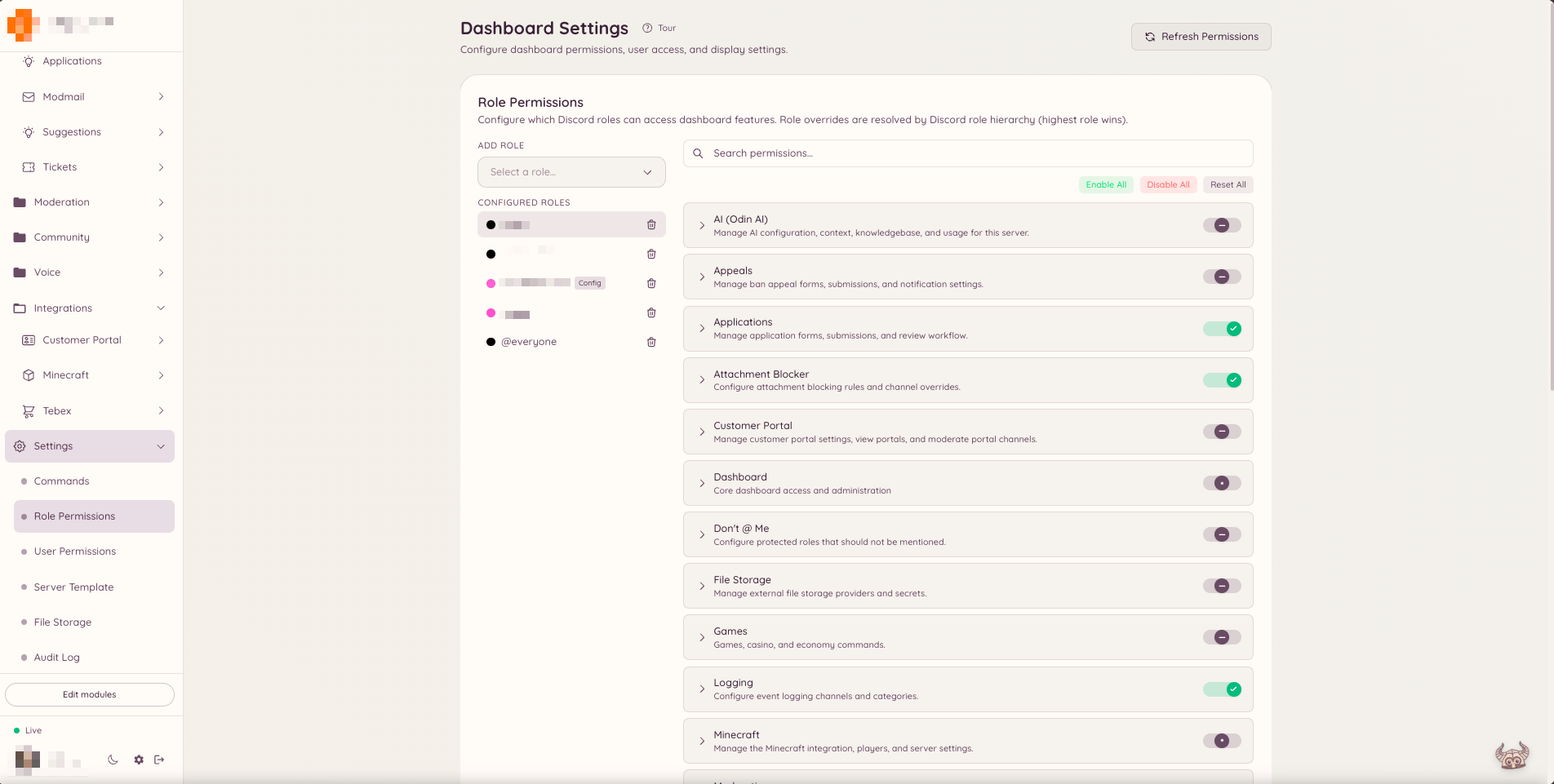
In the dashboard sidebar, click . The Settings page organises configuration into several tabs at the top of the page.
2
Select the Roles or Users tab
Choose the tab to configure role-level permission overrides, or the tab for per-user overrides. User overrides take priority over all role-based permissions and are useful for granting or blocking access for a specific person regardless of their roles.
3
Pick a role or user
Use the dropdown to select the Discord role (or specific user) you want to configure. All available permission keys appear below, grouped by plugin.
4
Set overrides
Each permission key has a three-position toggle: Allow, Deny, or Default. Allow grants the permission. Deny removes it even if the system default would otherwise permit access. Default defers to the system-wide setting for that key - most keys default to deny for staff actions and allow for member-facing features.
5
Save your changes
When you are satisfied, click Save in the save bar that appears at the bottom of the page. Changes take effect immediately for any member who holds the configured role.
Permission keys by section
Each feature’s documentation page lists the permission keys it uses. The keys follow a consistent naming pattern:moderation.enforcement.ban- ability to run/bantickets.operations.manage_tickets- ability to manage all tickets in the dashboardmodmail.analytics.view_analytics- ability to view modmail analytics
Role hierarchy
Heimdall evaluates all of a member’s current roles. If any one of their roles has been granted the permission, the member is allowed. There is no role hierarchy within the permission system - it is purely additive. Removing a role removes that source of permissions, but other roles the member holds may still grant access.Overriding defaults
If you want to restrict a feature that defaults to allowing all members - for example, you want to limit who can use the/ask AI command - you can enable the Restricted toggle on that permission key. Once restricted, only roles you explicitly assign will have access.