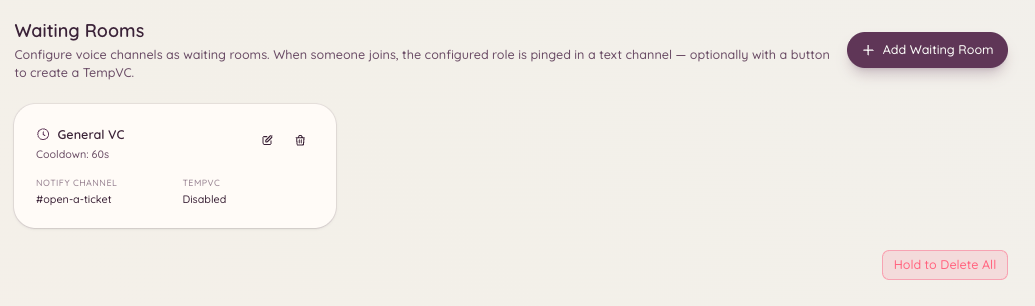
The waiting room plugin monitors a voice channel you designate as a waiting room. When a member joins that channel, the bot posts a notification in a configured staff channel so that a staff member can attend to them. This is useful for servers that handle one-on-one voice support sessions, interviews, or other cases where a member needs to signal they are ready to talk.
Voice Waiting Room

How it works

A member joins the waiting room voice channel. The bot immediately sends a notification message to the configured staff notification channel. The message includes the member’s name and a timestamp. Staff see the notification and can then either join the waiting room voice channel or move the member to a private channel. When the member leaves the waiting room, the bot updates or removes the notification to avoid stale alerts.

Setup

Navigate to in the dashboard. You can configure multiple waiting room channels, each with its own notification channel and ping roles.

Notification message variables

Using the accept feature

Staff can click the Accept button in the notification message to claim the waiting room attendee. Claiming marks the notification as handled and prevents multiple staff members from attending to the same person simultaneously.

Required permissions